نحوه استفاده از کلیدهای عبور Passkeys با مدیریت رمز عبور گوگل
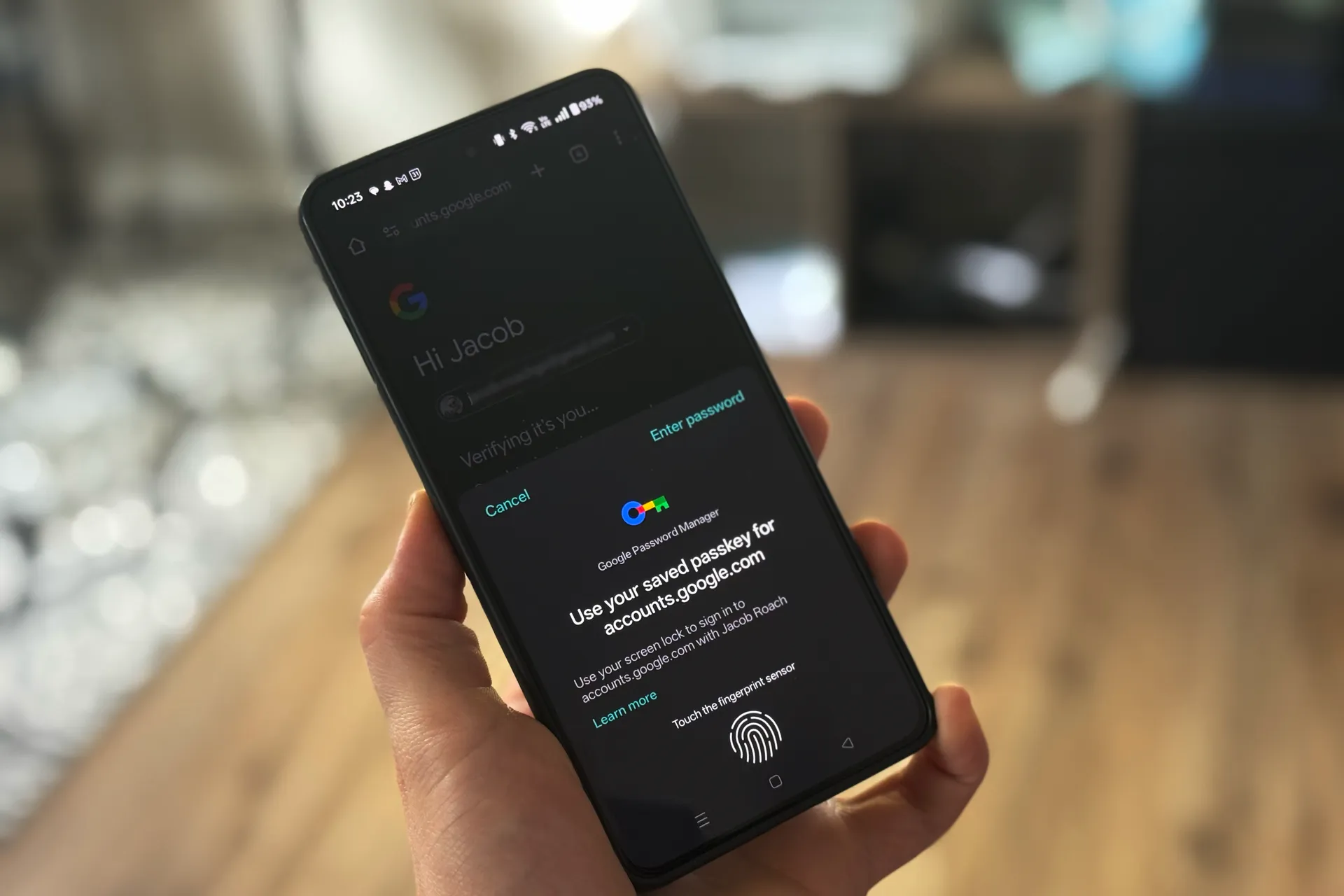
گوگل مصمم است که ما را به سمت «آیندهای بدون رمز عبور» (Passwordless Future) سوق دهد. این شرکت به شما اجازه میدهد تا «کلیدهای عبور» (Passkeys) را در سرویس «مدیریت رمز عبور گوگل» (Google Password Manager) ذخیره کنید. در وبسایتهایی که از این روش ورود پشتیبانی میکنند، گوگل اکنون امکان تولید، ذخیرهسازی و همگامسازی کلیدهای عبور را فراهم کرده است. با این حال، چالش اصلی، پیدا کردن راهی منسجم برای پیادهسازی این فرایند است.
تغییر رمز عبور قدیمی کار سادهای است، اما افزودن کلید عبور به حسابهایی که از قبل ایجاد کردهاید، یا مدیریت آنها صرفاً در مرورگر، به این سادگیها نیست. با این وجود، شما میتوانید با رعایت چند نکته، از کلیدهای عبور در Google Password Manager استفاده کنید.
کلید عبور (Passkey) چیست؟
بهطور خلاصه، کلید عبور روشی برای تأیید هویت شماست تا نیازی نباشد برای هر اپلیکیشن یا وبسایتی که در آن ثبتنام میکنید، رمز عبورهای طولانی و پیچیده را به خاطر بسپارید. شما میتوانید از کلید عبور برای حساب گوگل خود استفاده کنید، اما همچنین میتوانید کلیدهای عبور سایر وبسایتها را نیز در Google Password Manager (در مرورگر کروم یا مستقیماً از طریق اندروید) ذخیره کنید.
پیشنیازهای فنی:
ایجاد کلید عبور برای حساب گوگل ساده است. نکته کلیدی این است که این کار را روی دستگاهی انجام دهید که از این فناوری پشتیبانی میکند. شما به موارد زیر نیاز دارید:
- سیستمعامل: رایانهای با ویندوز ۱۰، macOS Ventura، ChromeOS 109 یا نسخههای جدیدتر؛ یا گوشی با iOS 16 و اندروید ۹ یا جدیدتر.
- مرورگر: مرورگرهای پشتیبانیشده شامل Chrome 109، Safari 16، Edge 109، Firefox 122 یا نسخههای جدیدتر.
چگونه برای حساب گوگل کلید عبور بسازیم؟
۱. به آدرس g.co/passkeys بروید و دستورالعملها را دنبال کنید.
۲. وارد حساب گوگل خود شوید.
۳. یک کلید عبور ایجاد کنید. این کلید یا به دستگاه شما متصل (Bound) میشود و یا در یک مدیریتکننده رمز عبور شخصثالث ذخیره میگردد. اگر از مدیریتکننده شخصثالث استفاده نمیکنید، کلید عبور گوگل به همان دستگاهی که در حال استفاده از آن هستید، متصل خواهد شد. (نکته: دستگاههای اپل کلیدهای شما را از طریق iCloud Keychain همگامسازی میکنند، اما در غیر این صورت، برای ورود به سیستم، حتماً به همان دستگاهی نیاز خواهید داشت که کلید را روی آن ساختهاید.)
مدیریت کلیدهای عبور:
پس از ساخت کلید، میتوانید آن را در myaccount.google.com مدیریت کنید. در آنجا به بخش Security بروید و گزینه Passkeys and Security Keys را انتخاب کنید تا کلیدهای موجود را ببینید. احتمالاً خواهید دید که چندین کلید عبور برای دستگاههای مختلف دارید، حتی اگر همه آنها برای ورود به یک حساب کاربری استفاده شوند.
راهنمای عملیاتی: فعالسازی در Google Password Manager
برخلاف تصور، ذخیرهسازی کلیدها همیشه «جادویی و خودکار» نیست. برای اطمینان از فعال بودن این قابلیت در کروم، این مسیر را دنبال کنید:
- روی سه نقطه در گوشه سمت راست بالا کلیک کنید.
- گزینه Passwords and Autofill را انتخاب کرده و سپس وارد Google Password Manager شوید.
- در تب باز شده، به بخش Settings بروید.
- اطمینان حاصل کنید که گزینه Offer to Save Passwords and Passkeys روشن است.
نحوه تنظیم کلید عبور برای وبسایتهای دیگر (مثال: Best Buy)
برای تنظیم کلید عبور در وبسایتهای دیگر، ابتدا باید اعتبارنامه (نام کاربری و رمز عبور) شما در آن سرویس ذخیره شده باشد.
- به وبسایت مورد نظر (مثلاً Best Buy) بروید و وارد حساب خود شوید.
- وقتی Google Password Manager از شما پرسید، اجازه دهید نام کاربری و رمز عبور ذخیره شود.
- در وبسایت مقصد، به بخش Account Settings بروید.
- در باکس Account Security، گزینه Passkey (Face or Fingerprint Sign-In) را انتخاب کنید.
- گزینه Create a Passkey را بزنید.
پس از ایجاد کلید، یک پنجره باز میشود تا هویت خود را با دستگاه دیگری که به حساب گوگل شما متصل است، تأیید کنید. اگر این اولین کلید عبوری است که میسازید، نیاز به تنظیم یک PIN خواهید داشت.
به یاد داشته باشید: هر سرویس رفتار متفاوتی دارد، اما همیشه باید فرایند ایجاد کلید عبور را از «سایت مقصد» شروع کنید، نه از داخل Google Password Manager. پس از ذخیره شدن، کلید عبور را در کنار سایر اعتبارنامههای خود در Google Password Manager خواهید دید.


نظرات کاربران (0)
تاکنون دیدگاهی برای این خبر ثبت نشده است.
ارسال دیدگاه

پربازدیدترین اخبار


برچسبها